.png)
Summer Planning: All Student Group Course Rostering - Schoology
Introduction
Administrators, special educators, and other staff who do not have courses directly rostered to them in Schoology require access to an ‘All Students’ group (or similar access structure) to view student profiles within Education Modified. We recommend creating custom course rosters organized by graduating class, enabling these users to efficiently manage and navigate student data in Education Modified via Schoology. Structuring courses as ‘Class of’ groups (e.g., Class of 2025) allows administrators and staff to easily access aggregated student information for reporting, progress monitoring, and collaboration.
General Steps
- Create Courses by Graduation Year
- Create a course for each graduating class (e.g., Class of 2025, Class of 2026, etc.).

- Roster Students
-
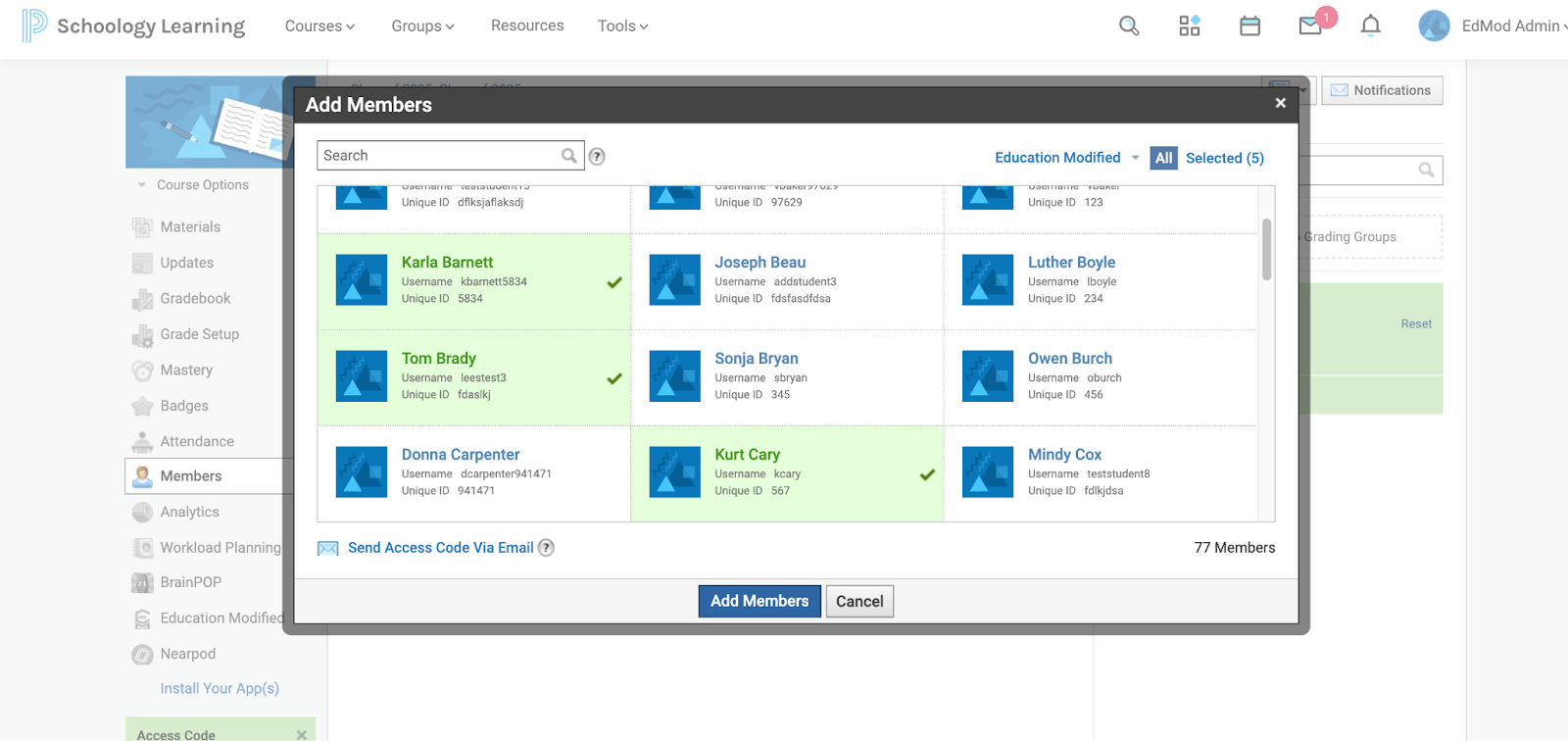
Add ALL students (gen ed and special ed) to the course that matches their expected graduation year.
-
- Roster Administrative Staff
-
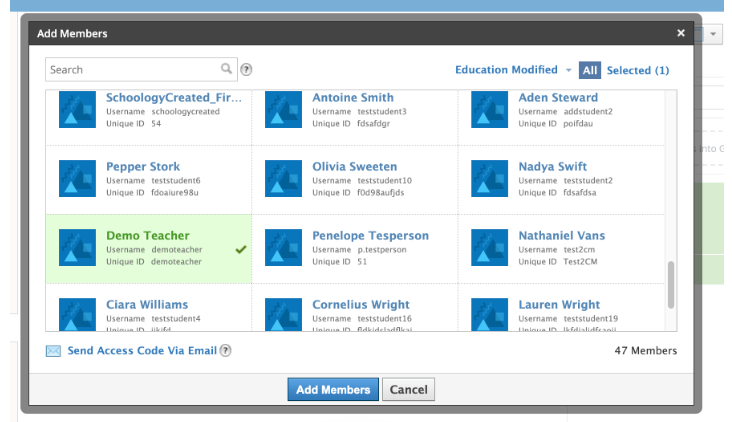
Add any administrators or staff members who need visibility into all students to each “Class of” course.
-
- Confirm Your Access
-
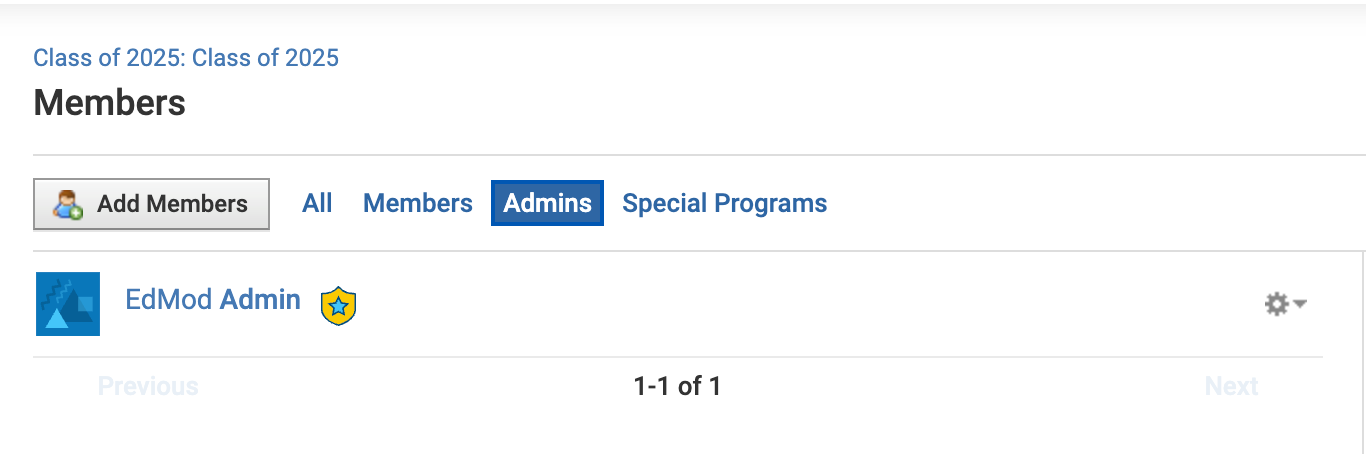
Ensure that you are also rostered in each course so you can manage and verify data as needed.
-
- Sync with Education Modified
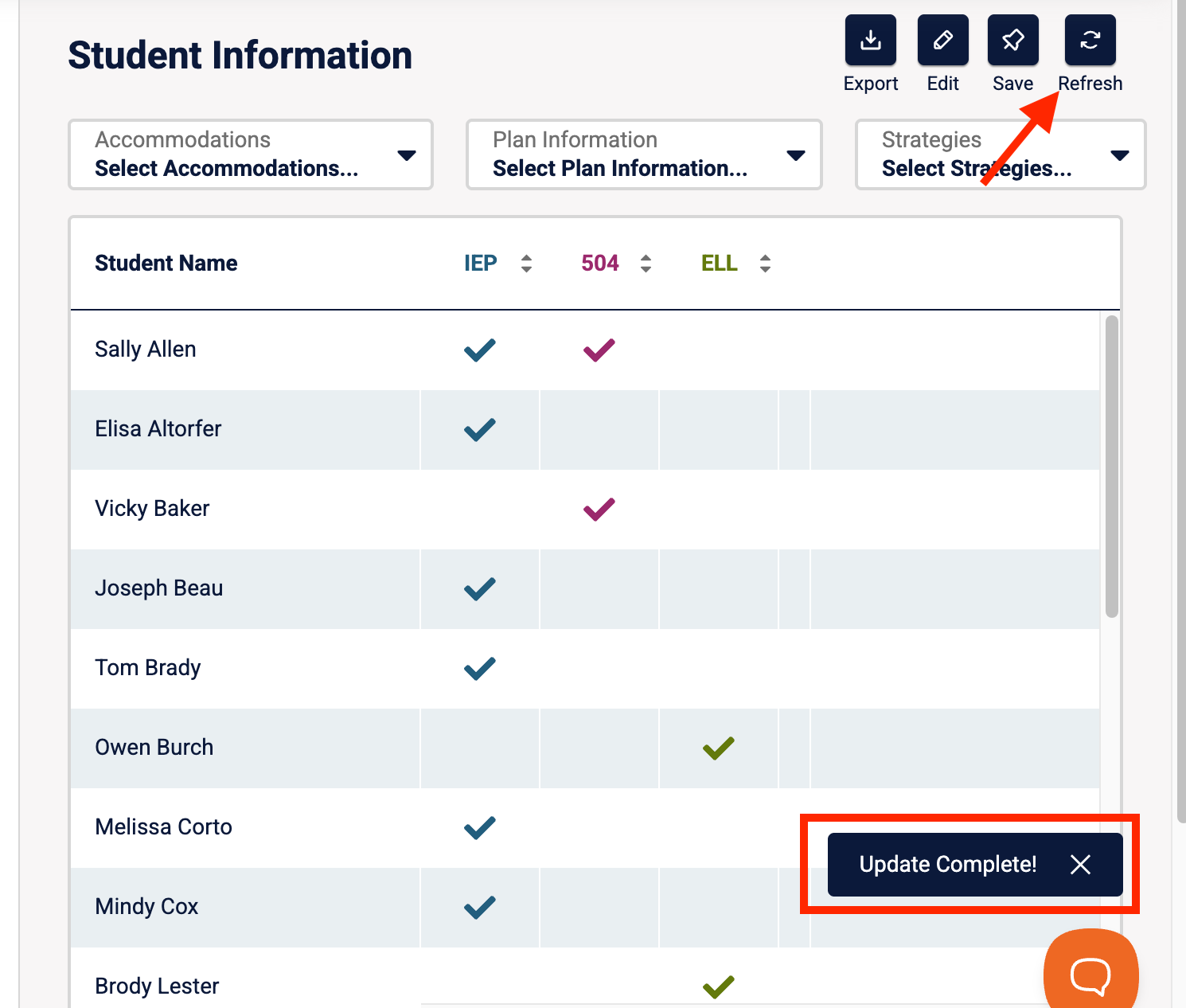
- Run a manual sync with Education Modified.
-
Confirm that each “Class of” course appears in Education Modified with the correct roster of students.
Notes
- Keeping course names consistent (e.g., “Class of 2025”) will help ensure clarity and proper data organization.
- It’s recommended to periodically review course rosters to ensure they remain accurate as students enroll, transfer, or graduate.
- To learn how to create a course or group for Education Modified in Schoology, please refer to that section within THIS article.