.png)
Creating a Form in the Data Collection Hub
This article walks you through the steps needed to create a form in the Data Collection Hub.
Note: Please note that this is an admin feature. You must have the right permissions to access this feature. If you do not have access to it, please contact your Education Modified systems administrator.
Creating a Form
Overview
This article walks you through the steps needed to create a form in the Data Collection Hub.
Note: This is an admin feature. You must have the appropriate permissions to access this feature. If you do not have access, please get in touch with your Education Modified Customer Success Manager.
Create a New Form
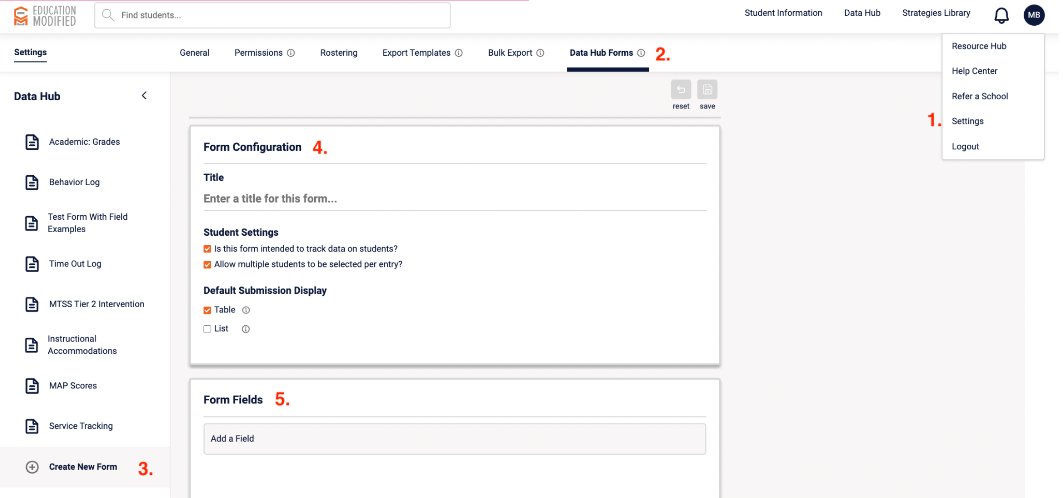
Navigate to Data Hub Forms (in Settings)
- In the upper-right-hand corner of the screen, click the circular icon with your initials
- Select "Settings"
- Click the "Data Hub Forms" tab
Create the Form
- Click “Create New Form” in the left sidebar
- Enter a title for your form
- Configure any applicable settings
Add Form Fields
- Add the necessary fields/questions to your form
Form Field Types & Best Use Cases
- Short Answer Field: Used for brief, single-line responses such as names, IDs, or short answers.
- Number Field: Used for entering numeric values only, such as scores, percentages, or counts.
- Link Field: Used for entering a valid URL, such as a resource, document, or website link.
- Date Field: Allows users to select or input a specific date.
- Checkbox Field: Allows users to select one or more options from a list.
- Multiple Choice Field: Allows users to select one option from a list of predefined choices.
- Dropdown Field: Allows users to select one option from a collapsible list, helping keep responses consistent and organized.
- Radio Button Field: Allows users to select a single option from a list, typically displayed as buttons for quick selection.
- Paragraph Field: Used for longer, open-ended responses such as notes, descriptions, or detailed observations.
- File Field: Allows users to upload a file, such as documents, images, or supporting materials.
- Smart Accommodation Field: Used to select from predefined accommodations tied to a student’s plan, ensuring consistency and accuracy.
- Instructional Text: Displays read-only text to guide users, provide instructions, or add context within the form.

- Click “Save” to finalize your form
What’s Next?
Need to make updates later? See Editing a Form in the Data Collection Hub.