.png)
Editing a Form in the Data Collection Hub
Editing a Form
Overview
This article explains how to safely edit an existing form in the Data Collection Hub.
⚠️ Important: If a form is edited after submissions have already been collected, existing submission data may be overwritten or deleted when changes are saved. Scroll to the section "Editing Questions with Existing Submission Data" to learn more.
Access the Form
- Navigate to Settings → Data Hub Forms
- Select the form you would like to edit

Edit Questions & Field Types
To Change a Question Type (e.g., Checkbox → Dropdown):
- Locate the question you want to update. Copy the title and any place holders/descriptions.
- You will need to completely delete the question and create a new one.
- Use the field type selector to choose a new type
- Update answer choices as needed
Add a New Question
- Click Add a Field at the very bottom of the form
- Select the desired field type
- Enter the question and any answer options
- Position the question in the correct order

Additional Form Actions
-
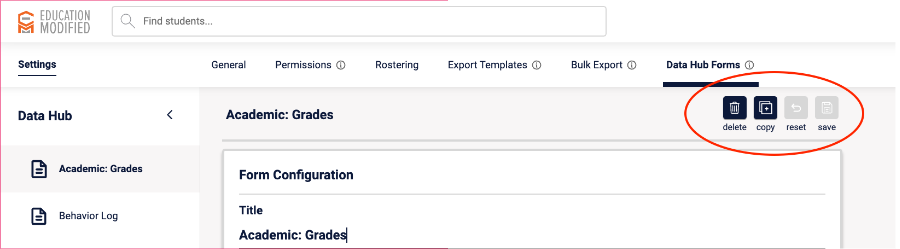
Delete: Removes the form so it is no longer available for new submissions
Note: Existing submissions will still be available within the student’s profile
- Copy: Duplicates the form in Data Hub Forms
- Reset: Reverts changes back to the last saved version
- Save: Always click “Save” to apply your changes
-
Reorder Forms
- Go to Settings → Data Hub Forms
- Drag and drop forms into your preferred order
- The order will apply to all teachers

Creating and Managing Folders
- Go to Settings → Data Hub Forms
- Click Create New Folder and name it
- Assign forms to folders by checking the box, then click Save
To add a form to an existing folder:
- Click the dropdown arrow next to the folder name
- Select Edit Folder

Editing Questions with Existing Submission Data
If a question already has submitted data and you need to change the field type or structure, it’s important to proceed carefully to avoid losing data. Below are two recommended approaches:
Option 1: Duplicate the Form (Recommended for Large Amounts of Data)
- Create a copy of the existing form using the Copy option
- Update the field type or question on the duplicated form
- Begin using the new form moving forward
This allows you to preserve all existing submissions in the original form. You can return to the original form at any time to review or export past data.
Option 2: Manually Preserve and Re-Enter Data (Best for Small Amounts of Data)
- Copy or export all existing submission data for the field
- Update the field type or question as needed
- Manually re-enter the previous submissions into the updated field
This approach is best when there are only a few submissions and manual entry is manageable.