.png)
Education Modified Smart Plans: How to Create and Finalize Smart Plans
This article walks through how to create, edit, and finalize an Education Modified Smart Plan using AI-assisted drafting and existing student data.
Before You Begin
- Smart Plans must be enabled for your organization
- You must have the appropriate permissions to access Smart Plans
Open the Student Profile
- Navigate to the student you want to create a Smart Plan for
- Open the student’s profile
- Select Smart Draft from the available sections

Start a New Smart Plan
- Select Click here to create a draft for this student
Choose Data Sources
You can build a Smart Plan using one or more of the following data sources:
Choose a Document
- Upload assessment reports, evaluations, or other relevant files
- NOTE: Smart Plans uses document classifications to determine how uploaded files are interpreted when generating a plan. For the best results, accurately classify each document (e.g., Evaluation, Assessment, Progress Report) instead of assigning the same classification to all uploads.
Select Existing Documents
- Choose documents already stored in the student’s Document section
Use DCH Forms
- Select Data Collection Hub (DCH) forms that contain data collected for the student

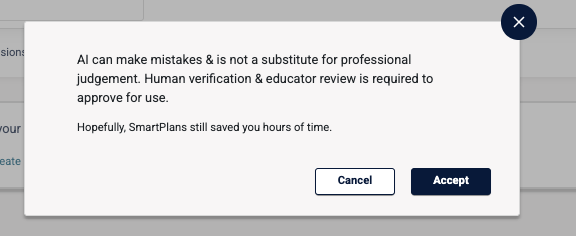
Accept Human-in-the-Loop (HITL) Responsibility
Before generating the draft, you must acknowledge that:
- AI-generated content requires educator review
-
You are responsible for verifying accuracy and appropriateness
Generate the Smart Plan Draft
- Smart Plans will create a comprehensive draft using the selected data sources (this may take a few minutes)
Review and Edit the Draft
Educators can refine the draft in two ways:
Edit Inline
- Click through the tabs on the left (Learning Needs, Present Levels, Strategies, etc.) and type directly into any section to manually update content

Regenerate with AI
- Use AI regeneration tools to revise specific sections while keeping educator oversight
- Want to learn more about prompts? Check out this FAQ article!

Finalize the Smart Plan
- Review all sections for accuracy and completeness
- Make any final edits as needed
- Finalize by clicking Save Draft. You then have the option to go back and Edit or Send for signature
NOTE: Reject will discard the current Smart Plan and return to the initial screen. New Plan will open the modal to select documents and forms to create a new plan. Once you create a new plan, the existing one will be rejected as well.
Sidebar Information
- To review the plans drafted as well as the Active plan change log, click on Revision Log
- Data Source shows documents used in the draft, as well as any DCH forms used.
- The Signatures tab is reserved for a future enhancement that will support digital signatures. This functionality is not yet available.

Need Help?
If you have questions about Smart Plans or run into issues, contact Support@educationmodified.com